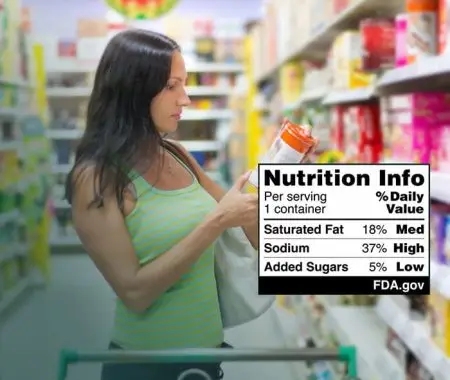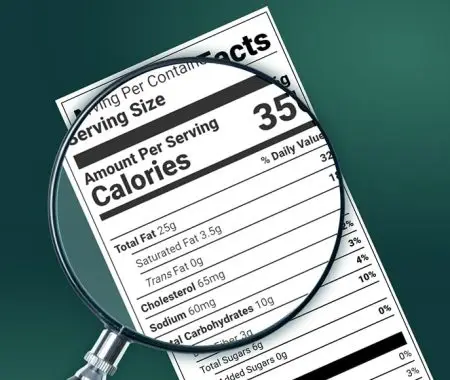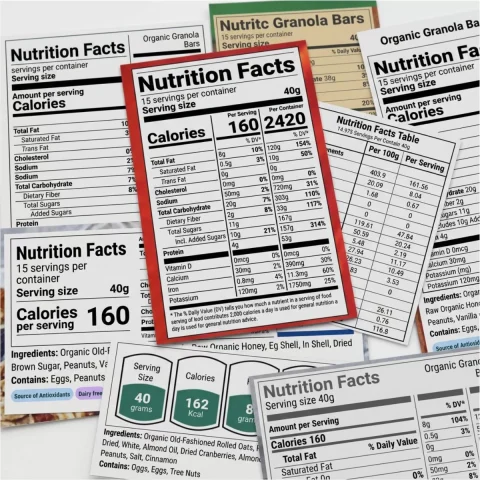
The standard vertical Nutrition Facts label is FDA’s default format, and FDA allows other formats for smaller packages and for products that need two sets of values, such as per serving and per container. This guide shows a template for every FDA format, from standard to tabular, linear, simplified, dual column and aggregate, plus the labels for foods made for infants and young children, with when to use each one.
To fill in a template with your own values, use our free nutrition label generator and see the FDA label build as you type.
Need a Nutrition Facts label for your product?
What Is the Standard Format for FDA Nutrition Labels?
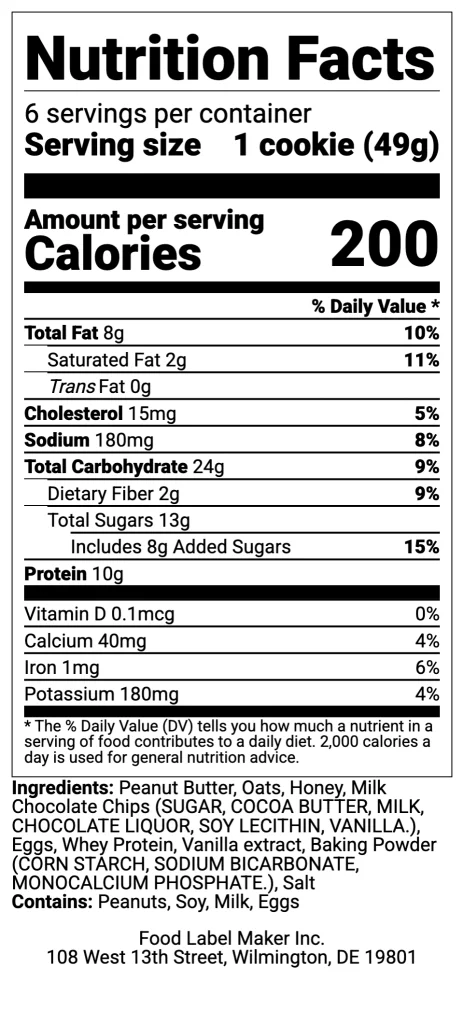
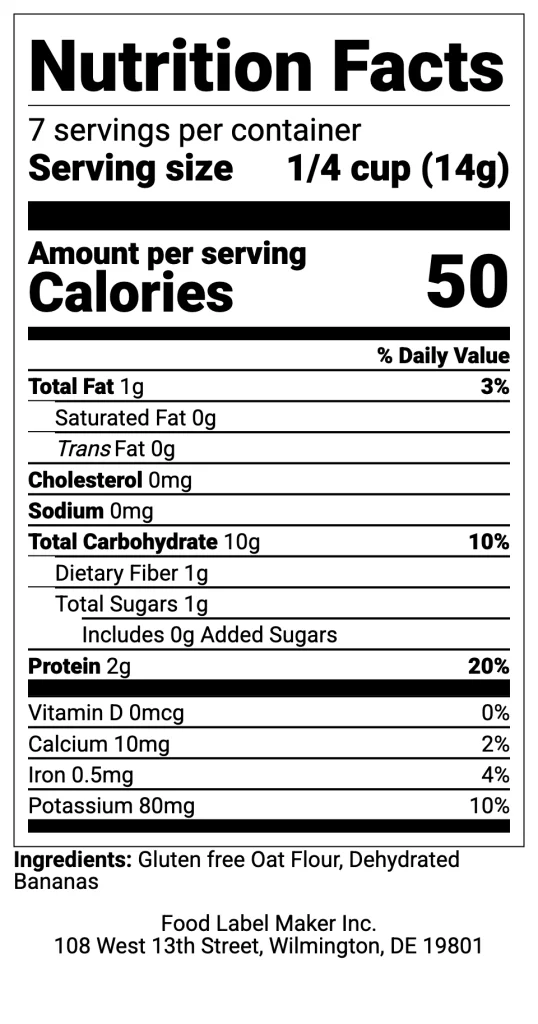
Under FDA’s Nutrition Facts label rules, the standard vertical label is the default format for most packaged foods, with the information in a set order from the “Nutrition Facts” heading at the top to the % Daily Value footnote at the bottom.
| Section (top to bottom) | What it shows |
| Nutrition Facts | The heading, bold and larger than all other text except the calorie number |
| Servings per container | How many servings are in the package |
| Serving size | The serving in household units and grams or milliliters, in bold |
| Amount per serving and Calories | Calories per serving, in the largest bold type on the label |
| % Daily Value | The heading for the % Daily Value column |
| Nutrients | Total Fat, Saturated Fat, Trans Fat, Cholesterol, Sodium, Total Carbohydrate, Dietary Fiber, Total Sugars, Includes Added Sugars and Protein |
| Vitamins and minerals | Vitamin D, Calcium, Iron and Potassium, each with its amount and % Daily Value |
| Footnote | What % Daily Value means, based on 2,000 calories a day |
Source: FDA Nutrition Facts label rules and FDA label format examples
Each part has its own rules for type size, serving size and % Daily Value. See our guides to Nutrition Facts font and type size rules, FDA serving size rules and how to calculate % Daily Value.
Which Nutrition Facts Label Format Do You Need?
Start with the standard vertical label, and switch to another format only when your package size or product calls for it. Under FDA’s Nutrition Facts label rules, each format has its own conditions:
| Format | When to use it |
| Standard (vertical) | The default for most packaged foods |
| Tabular | The package doesn’t have about 3 inches of continuous vertical space for the standard label |
| Linear | Small and intermediate-sized packages where the tabular format doesn’t fit |
| Simplified | The food has insignificant amounts (declared as zero or less than 1 gram) of 8 or more of the required nutrients, such as many drinks and candies |
| Micronutrients Side-by-Side | Vitamin D, calcium, iron and potassium are listed across two columns to save space. Not allowed when more than four optional vitamins and minerals are listed |
| Dual Column (Per Serving/Per Container) | Required when a package holds 200 to 300% of the reference amount (the standard serving size FDA sets for that food), since it could be eaten in one or more sittings |
| Dual Column (As Sold/As Prepared) | Products sold in one form and eaten in another, such as a mix prepared with milk and eggs |
| Aggregate | Packages with two or more separately packaged foods meant to be eaten on their own, such as variety packs |
| Children (1-3 Years) | Foods made for children 1 through 3 years old, using their own Daily Values |
| Infants (1-12 Months) | Foods made for infants through 12 months old, using their own Daily Values |
Source: FDA Nutrition Facts label rules, FDA label format examples and the FDA Food Labeling Guide
To see which format fits your product, enter your values in our free nutrition label generator, then choose any FDA format when you create your first label free.
FDA Nutrition Facts Label Templates by Format
Each template below uses one of our example products, so you can see how the same rules look in every FDA format.
Tabular Nutrition Facts Label
The tabular label places the nutrients in columns beside the “Nutrition Facts” heading, for packages that don’t have about 3 inches of vertical space for the standard label.
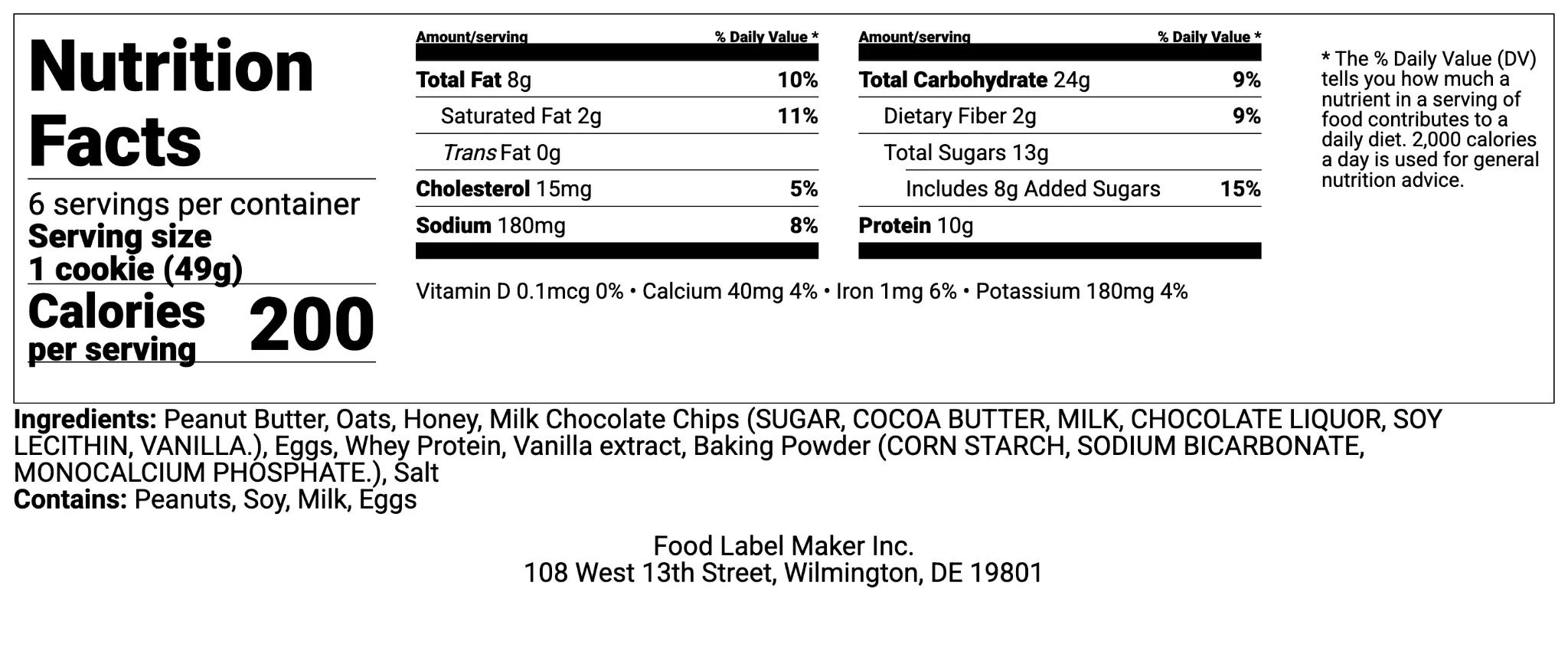
- When to use it: wide or short packages, like snack bars and boxes laid on their side.
- Smaller type allowed: “Calories” can be 10 pt and the serving size 9 pt. See our guide to Nutrition Facts font and type size rules.
Linear Nutrition Facts Label
The linear label runs every nutrient in one paragraph, for small and intermediate-sized packages where the tabular format doesn’t fit.
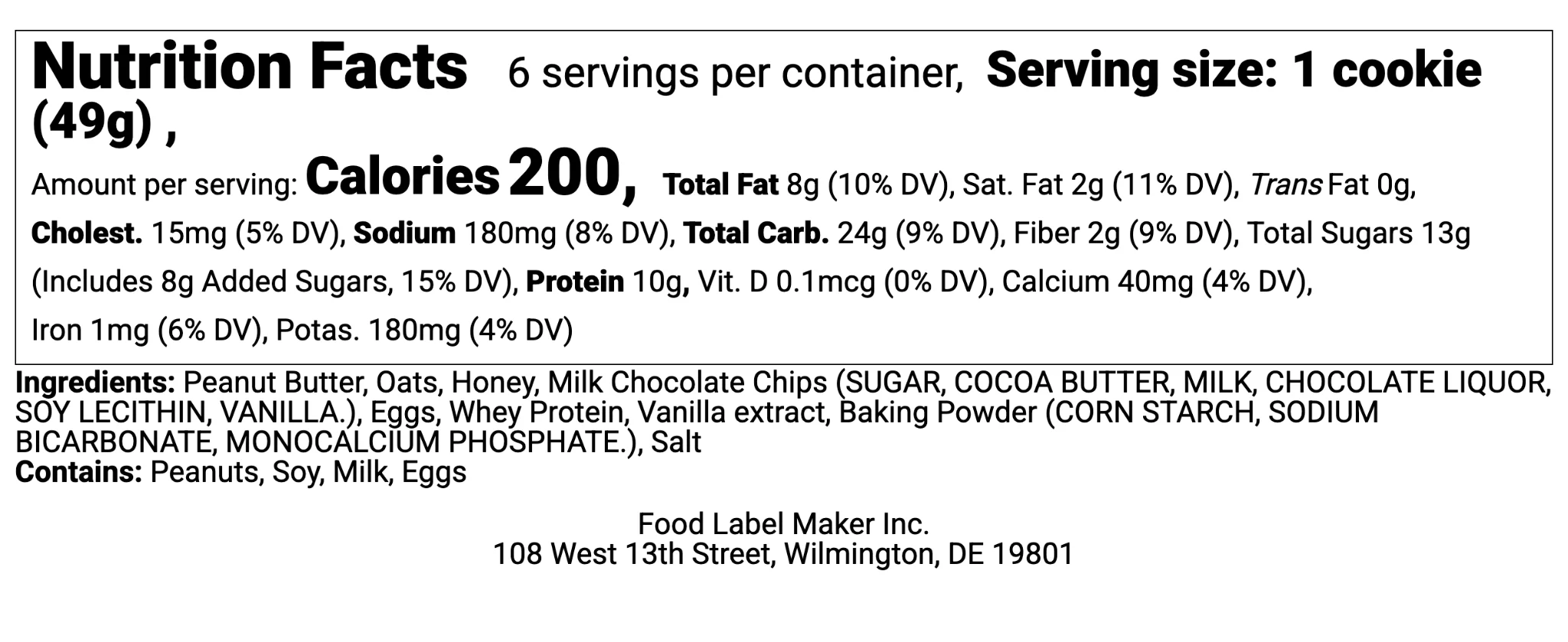
- When to use it: small packages like candy bars, single-serve snacks and narrow containers.
- How it reads: nutrients are separated by commas, with short forms like “Sat. Fat,” “Cholest.” and “Total Carb.,” as shown in FDA’s label format examples.
Simplified Nutrition Facts Label
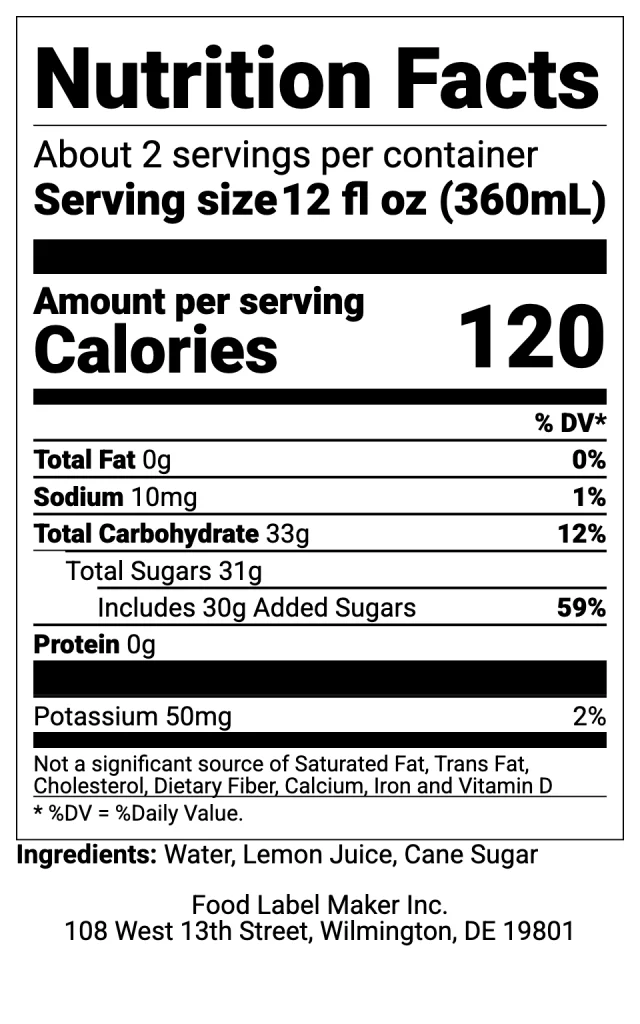
The simplified label leaves out nutrients that are zero, for foods with insignificant amounts of 8 or more of the required nutrients.
- When to use it: foods like soft drinks, lemonade, candy and other products made mostly of sugar.
- What changes: the nutrients left out are listed in a “Not a significant source of…” statement at the bottom.
Nutrition Facts Label With Micronutrients Side-by-Side
This version of the standard label lists vitamin D, calcium, iron and potassium across two columns to save space.
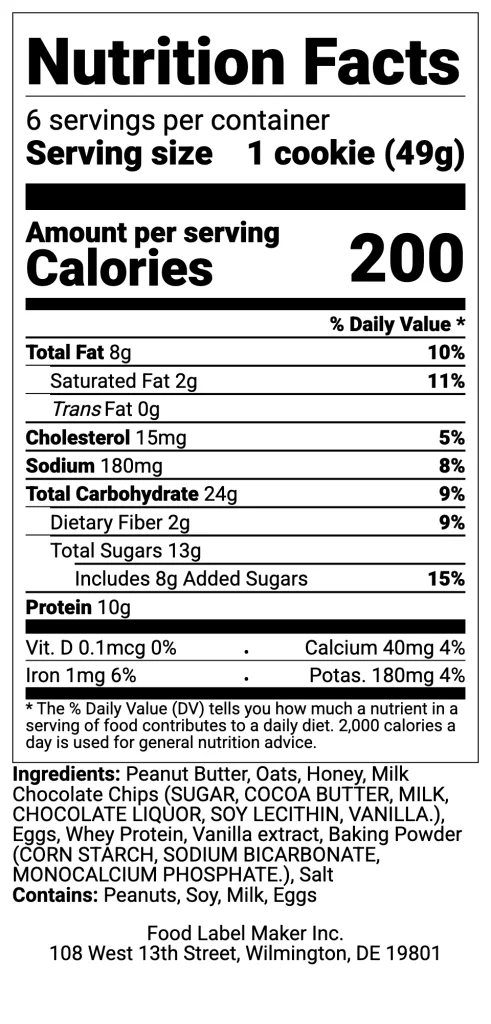
- When to use it: when the standard label is slightly too tall for your package.
- The order: vitamin D and calcium on the first line, iron and potassium on the second.
- The limit: vitamins and minerals go back to a vertical list when more than four optional ones are added.
Dual Column Nutrition Facts Label (Per Serving and Per Container)
This dual column label shows values per serving and for the whole package, and FDA requires it for packages holding 200 to 300% of the reference amount, with a few exemptions.
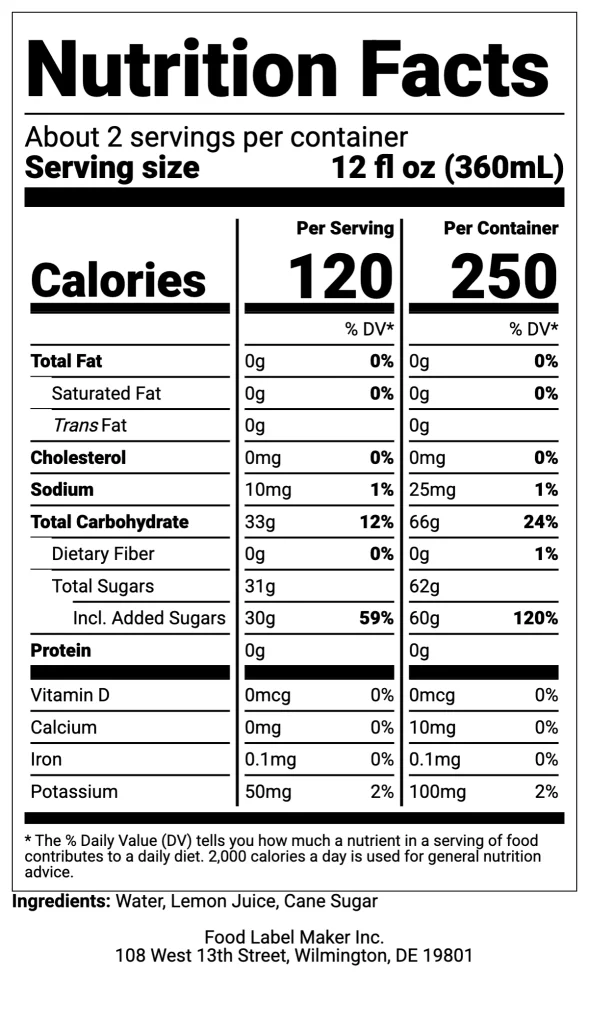
- When to use it: packages people might finish in one sitting or share, like a 24 fl oz drink (twice the 12 fl oz reference amount), a large bag of chips or a pint of ice cream.
- What it shows: two columns of calories, nutrients and % Daily Values, one per serving and one per container.
Dual Column Nutrition Facts Label (As Sold and As Prepared)
This dual column label shows values for the product as sold and as prepared, side by side and with equal prominence.
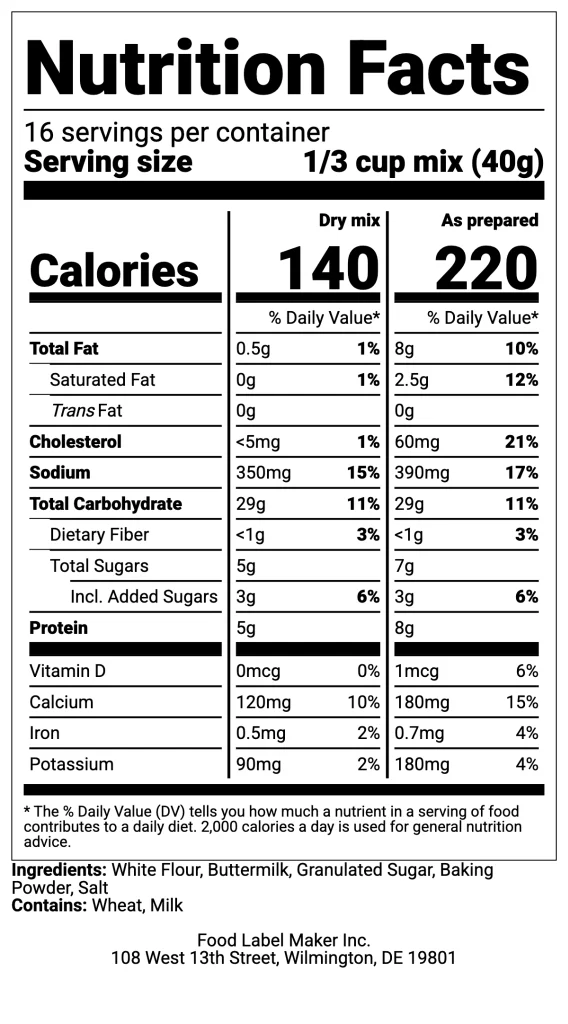
- When to use it: products prepared before eating, like pancake mix, cake mix or boxed mac and cheese.
- What it shows: one column for the dry mix and one for the food once prepared with the added ingredients.
Aggregate Nutrition Facts Label
The aggregate label shows several foods in one Nutrition Facts panel, with each food’s name above its own column.
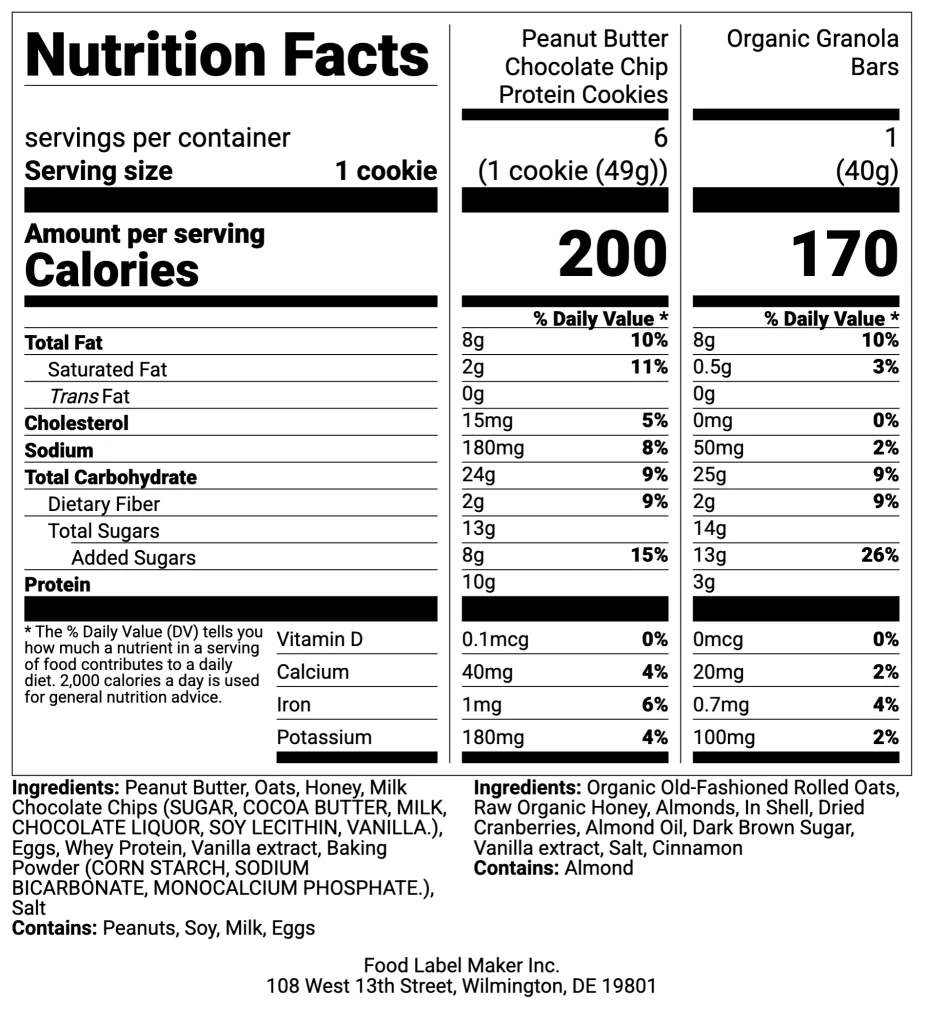
- When to use it: packages with two or more separately packaged foods meant to be eaten on their own, like variety packs and multipacks.
- What it shows: a column of values for each food, with one shared list of nutrient names.
Nutrition Facts Label for Children 1-3 Years
The children’s label uses Daily Values for children 1 through 3 years old, based on 1,000 calories a day.
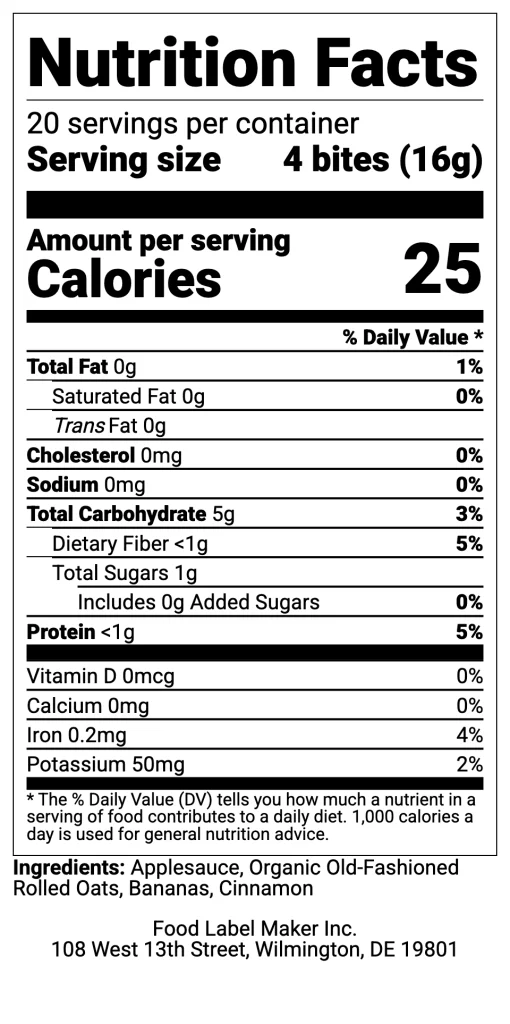
- When to use it: foods made specifically for toddlers and young children.
- What changes: serving sizes are based on what children this age usually eat, the footnote uses 1,000 calories, and protein shows a % Daily Value.
Nutrition Facts Label for Infants 1-12 Months
The infant label uses Daily Values for infants through 12 months old, with serving sizes based on what infants usually eat.
- When to use it: foods made specifically for babies, like infant cereal and baby food purees.
- What changes: nutrients are measured against infant Daily Values, and protein shows a % Daily Value.
What Changed on the Nutrition Facts Label?
FDA updated the Nutrition Facts label in 2016 to make calories and serving sizes easier to read, add added sugars, and reflect newer nutrition science. You can read the full list in FDA’s changes to the Nutrition Facts label.
| What changed | Current label |
| Calories | Larger type, with the calorie number in bold |
| Serving size and servings per container | Larger type, with the serving size in bold |
| Added sugars | “Includes X g Added Sugars” sits under Total Sugars, in grams and as a % Daily Value |
| Required vitamins and minerals | Vitamin D, calcium, iron and potassium, each shown as an actual amount and a % Daily Value |
| Vitamins A and C | No longer required, and you can still list them voluntarily |
| Calories from Fat | Removed. Total Fat, Saturated Fat and Trans Fat stay on the label |
| Daily Values | Updated for sodium (2,300 mg), dietary fiber (28 g) and vitamin D (20 mcg) |
| Footnote | New wording that explains what % Daily Value means and that 2,000 calories a day is used for general nutrition advice |
| Serving sizes | Based on what people actually eat. For example, ice cream went from 1/2 cup to 2/3 cup and soda from 8 oz to 12 oz |
| Package size | Packages that hold one to two servings are labeled as one serving. Some larger packages need a dual column label |
Source: FDA’s changes to the Nutrition Facts label and FDA’s Daily Value reference
When Did the New Nutrition Facts Label Become Mandatory?
All three compliance dates for the new label have passed, so every food label sold in the US now needs the current format.
- January 1, 2020: manufacturers with $10 million or more in annual sales
- January 1, 2021: manufacturers with less than $10 million in annual food sales
- July 1, 2021: most single-ingredient sugars, like honey and maple syrup, and certain cranberry products
Single-ingredient sugars show only the % Daily Value for added sugars and leave out the gram amount. For a closer look at each change, see our guide to Nutrition Facts label changes.
How to Create a Nutrition Facts Label From a Template in Food Label Maker
Food Label Maker builds your Nutrition Facts label from your recipe, so you add your ingredients once and then choose any FDA format to download. Your first label is free when you create an account.
- Create a free account. Sign up at Food Label Maker and start a new recipe.
- Set up your recipe. Enter the recipe name, the number of packages the batch makes, the servings per package and a household serving size, such as “1 cookie” or “2 tbsp”. Our RACC guide helps you pick the right serving size for your product category.
- Add your ingredients. Add each ingredient with the amount you use, and Food Label Maker calculates the nutrition facts for one serving.
- Choose your label format. Click Download, then pick a format from “Choose your preferred label style,” such as Standard, Tabular, Linear, Simplified or Dual Column.
- Choose what goes on the label. Tick the parts you need, such as the ingredient list, allergen statement and business address.
- Download your label. Pick a file type, such as PNG, PDF or SVG, and download it. You can download the same recipe again in a different format whenever your packaging changes.
Aggregate labels need a separate recipe for each food in the pack. Our Help Center guide to the FDA aggregate format walks you through the setup.
This is our “How to Download and Save Your Nutrition Label” tutorial, and it shows the label style dropdown and the download options.
Want a Nutrition Facts template filled in with your recipe?
Frequently Asked Questions About Nutrition Facts Templates
1. Do all foods need a Nutrition Facts label?
Most packaged foods sold in the US need a Nutrition Facts label, and some foods are exempt. These include foods served in restaurants and foods with insignificant amounts of all nutrients, such as plain coffee, tea and spices. FDA’s small business nutrition labeling exemption covers products from businesses with fewer than 100 full-time equivalent employees that sell fewer than 100,000 units in the US a year. These businesses file a notice with FDA every year, and a product that carries a nutrition claim loses the exemption. Our guide on selling food without a Nutrition Facts label explains each exemption.
2. Where can I get a free Nutrition Facts label template?
Our free nutrition label generator lets you fill in your nutrition information and preview a standard FDA label. To get a label calculated from your recipe in any FDA format, create a free Food Label Maker account, and your first label is free.
3. Can I make a Nutrition Facts label in Word?
You can build a Nutrition Facts label as a table in Word. You’ll need to set the FDA type sizes, bold bars and nutrient order by hand, and update every number yourself whenever your recipe changes. A label tool that calculates the nutrition facts from your recipe saves that rework.
4. What is the standard format for a Nutrition Facts label?
The standard vertical format is the default FDA Nutrition Facts label. It shows serving information, calories, nutrients with their % Daily Values, and the footnote in one column. You use it unless your package qualifies for another format, such as tabular or linear for small packages.
5. What size does a Nutrition Facts label need to be?
FDA sets minimum type sizes for each part of the label in place of a fixed label size, so the size of your label depends on your package. When the standard label doesn’t fit, FDA allows the tabular format, and very small packages can use the linear format. Our guide to Nutrition Facts font rules lists every minimum size.
6. How do I create an FDA-compliant Nutrition Facts label?
You need the nutrition values for one serving, an FDA serving size, and the right label format for your package. Food Label Maker calculates the values from your recipe and lays them out in the FDA format you choose. For the full list of requirements, see our guide to an FDA-compliant Nutrition Facts label.
Not sure which Nutrition Facts format your product needs?

Related Posts